

Create a folder or flow
1
From the Automate tab, navigate to the location in the file tree where you want to create the new file or folder.
2
Click the icon in the toolbar.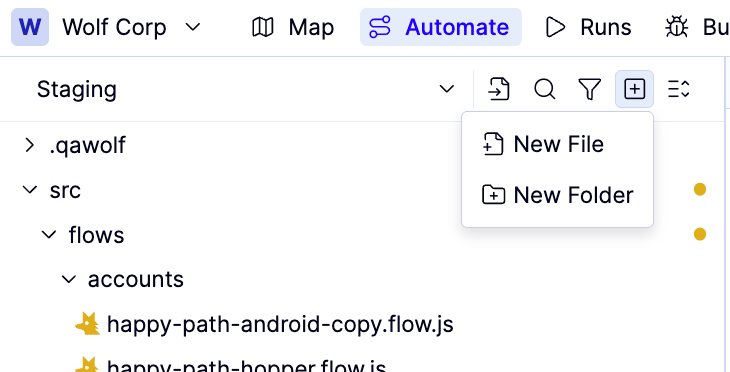
3
Click New Folder or New Flow.
Use clear, descriptive names that reflect your app’s feature areas — this helps both you and AI keep flows organized.
Write test code
Select a flow file from the tree to open it in the code editor. The editor prefills new flows with AAA (Arrange-Act-Assert) comments as a starting structure. For a full explanation of flow structure and imports, see Anatomy of a flow.QA Wolf lints your code as you type. See Debug tests & flows if you encounter errors.
Publish your changes
1
When ready, click Review.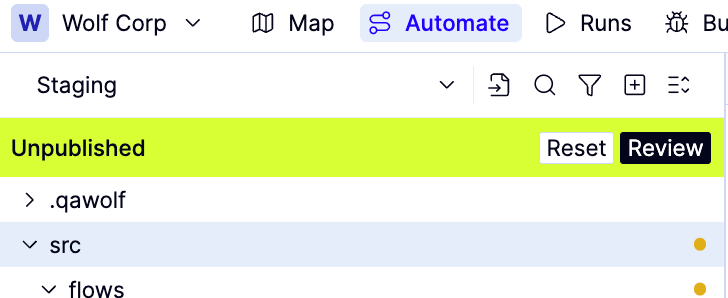
2
Review your changes in the side-by-side diff.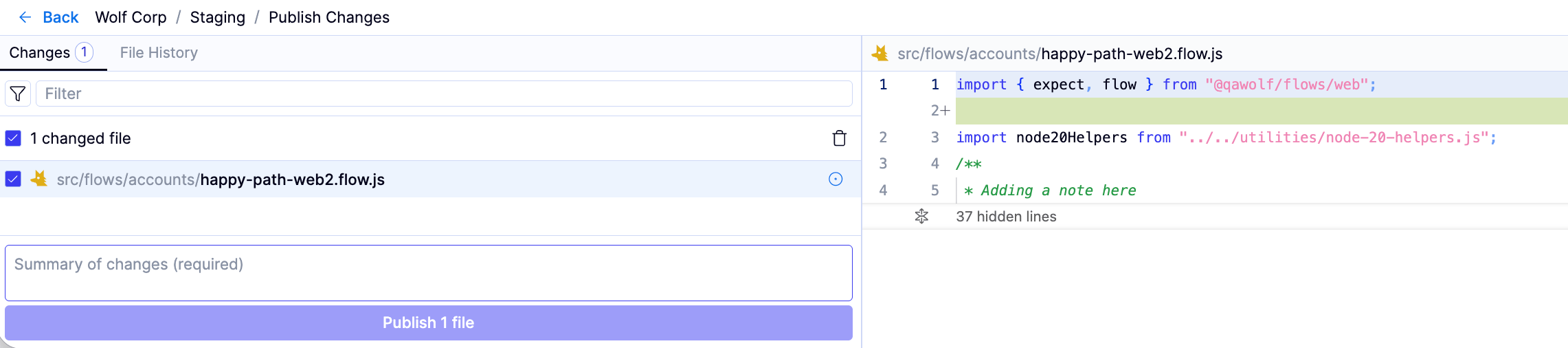
3
Enter a clear description of the change in the Adding a comment field.
4
Click Publish changes to confirm. The publish dialog will close when your changes have been saved.