

Make sure you have:
- Admin or Maintainer access to the GitLab project.
- Access to your QA Wolf workspace.
- At least one QA Wolf environment already configured.
- A QA Wolf API key.
Enable the GitLab integration in QA Wolf
1
Open the
Workspace name dropdown in QA Wolf and click Workspace Settings.2
Click Integrations, then click Enable next to GitLab. This opens GitLab, where you’ll be prompted to sign in if you have not already done so. Follow the prompts to connect your GitLab account or group.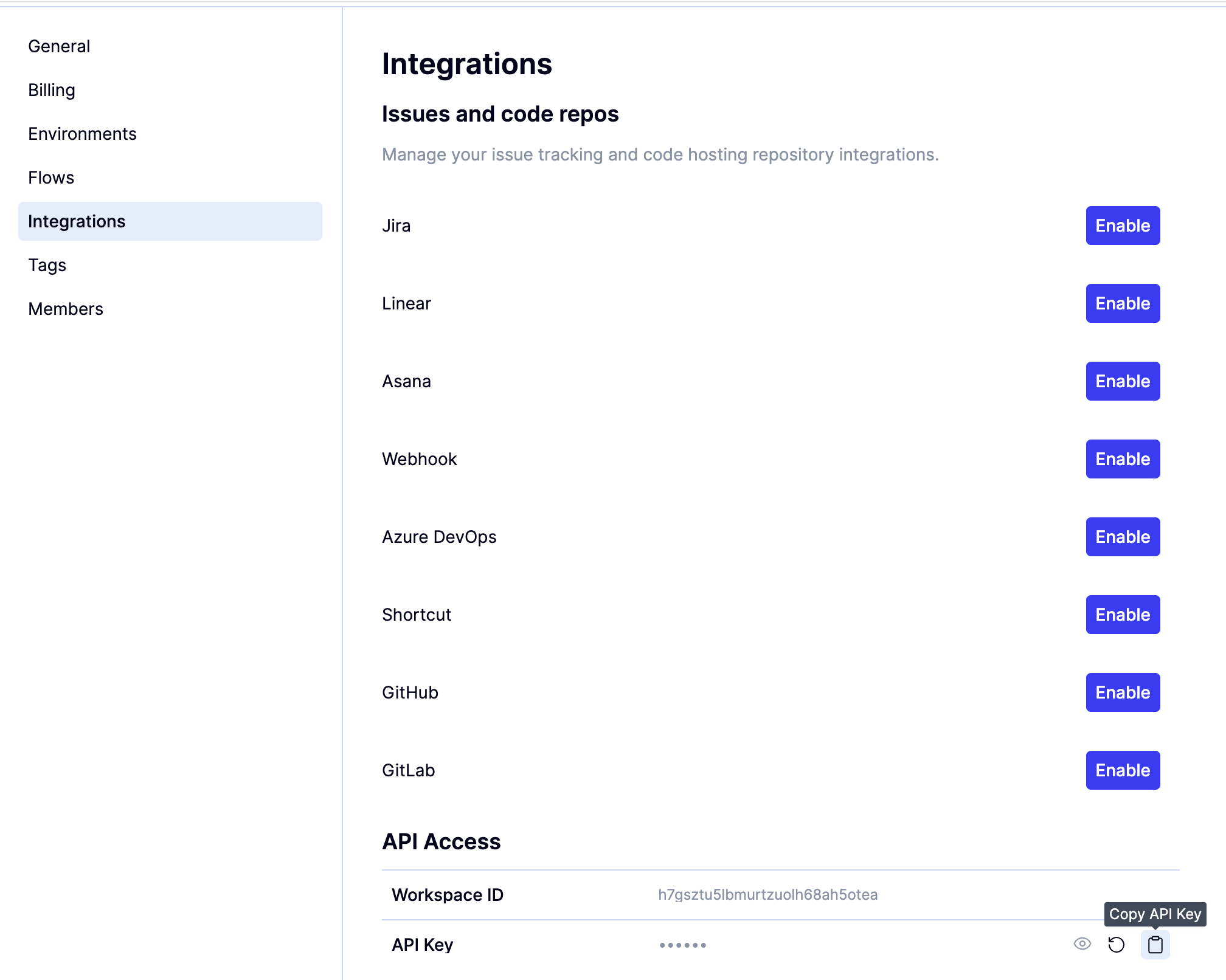
The Maintainer role is required because Developer tokens cannot create pipeline checks on protected branches.
Find the QAWOLF_API_KEY
1
Open the
Workspace name dropdown in QA Wolf and click Workspace Settings.2
Choose Integrations and then click the icon to the right of API Key under API Access.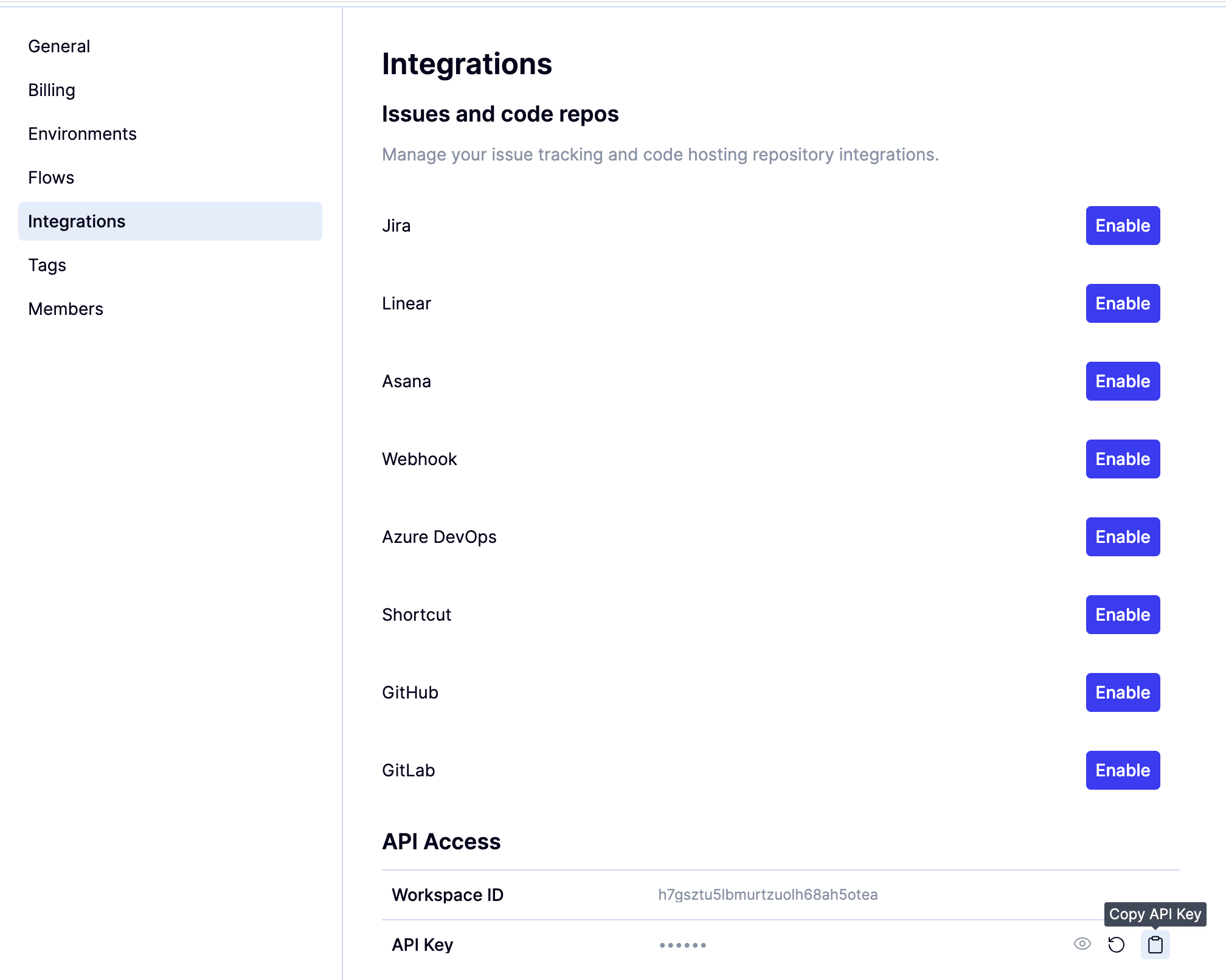
Add the QAWOLF_API_KEY secret
1
Open your GitLab project.
2
Go to Settings → CI/CD → Variables.
3
Click Add variable.
4
Name the variable
QAWOLF_API_KEY, paste your API key, and save.Add the deploy notification to GitLab CI/CD
QA Wolf provides a public API endpoint that your GitLab pipeline can call upon successful deployment. Add a job to your.gitlab-ci.yml that runs after your deploy step completes successfully.
1
Run your GitLab CI/CD pipeline to trigger a deployment.
2
Wait for the pipeline to complete successfully.
3
Open QA Wolf and confirm a new run appears under the expected environment.
Verify the integration
1
Push a new commit to your main branch and wait for your deployment to complete.
2
Open QA Wolf and confirm a new run appears under the expected environment.